


How to use FTP to upload pictures to a media library

Sometimes it can happen that you can’t upload an image to media using the WordPress administration interface. This can be, for example, that the uploaded files are too large. In this article, we will show you how to use FTP to add images to the Media section.

You will need to install and activate the plugin first Media from FTP.
This plugin can search the uploads addressee with its subdirectories and then import the found files to the library media. The process of adding files is complete, and preview images (thumbnail) are also generated for the image, and their metadata will also be created for images, videos and audio files.
Now that the plugin is activated Connect with FTP for hosting and in the wp-content / uploads folder / upload the files you want to add to Media libraries. Once you’re done, sign in to the WordPress administration and there is an option in the left menu Media from FTP. Select from the submenu Search & Register and click on Search
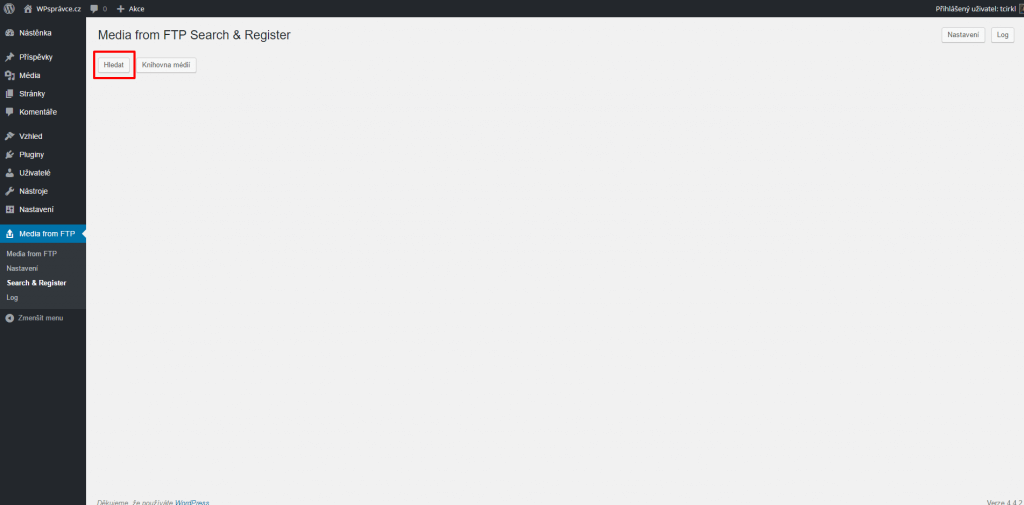
A list of found files will appear. You can then mark the ones you want to add to the media library. Once you are ready, click the button update the media file.
Adding files automatically to your media library and other settings
Plugin Media from FTP It contains quite interesting settings. You can access it by selecting from the menu in the WordPress administration Media from FTP -> Settings.
Execution Time – Maximum allowed time (in seconds) when the script run is allowed.
Character Encodings for Server – Character encoding for the server.
The date – What date will be set when adding files to the media library.
Exif headline – Settings for using EXIF data.
EXCLUDE FILE – Settings of file types that will be ignored.
Schedule – Automatically adding files to the media library.
log- Logo creation option.
Remove Thumbnails Cache – Debug tool that cleans preview images.
