



How to make a link in a post or page content in WordPress

In this article, we will show you how to create a link in the content of the post or page in WordPress using both the classic editor and the Gutenberg block editor.
 Nedeštruktívne
Technoogie
ktoré nikde nekúpiš.
Link creation in a classic editor
You make a link in a classic WordPress editor by marking the text from which you want to create a link and clicking on the chain icon in the toolbar.
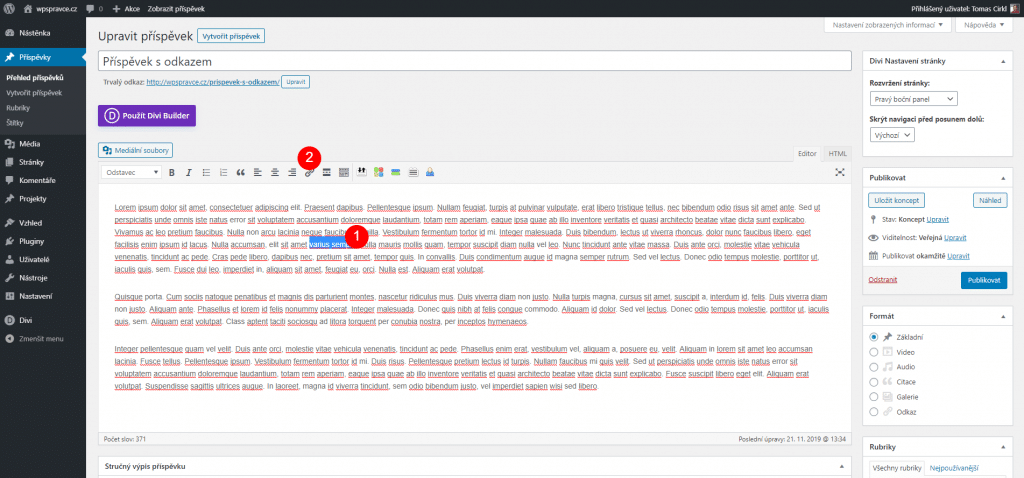
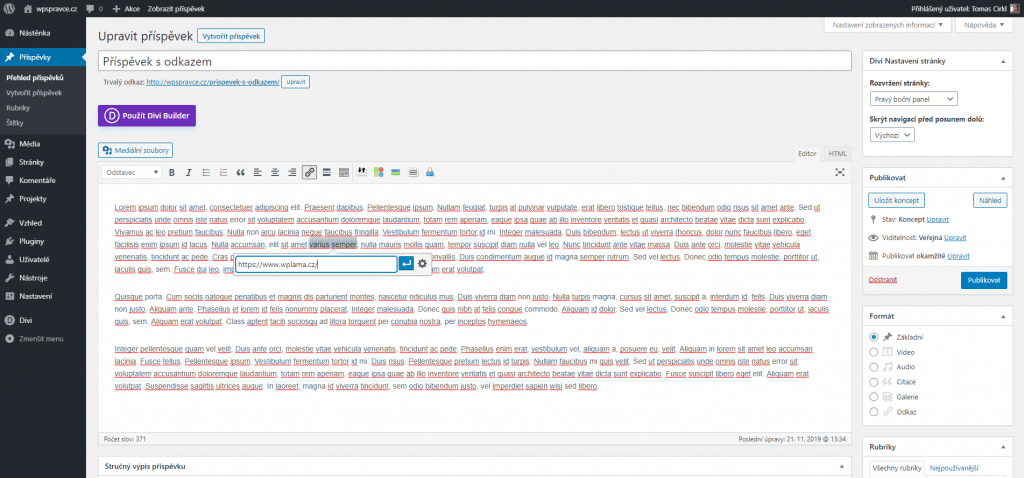
A pop-up window appears. Paste the copied link, or enter a keyword if you want to link to a post / page that is part of your website. Finally, click on the right arrow or press Enter.
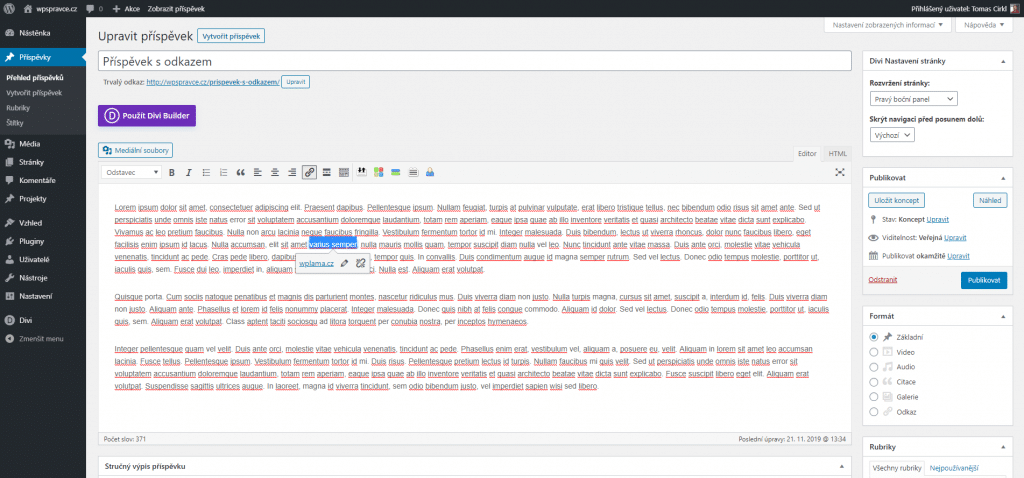
The link is created and you are done.
Link Creation in Gutenberg Block Editor
To create a link in the Gutenberg editor, select the text you want to turn into a link and click the chain icon in the toolbar above the text block.
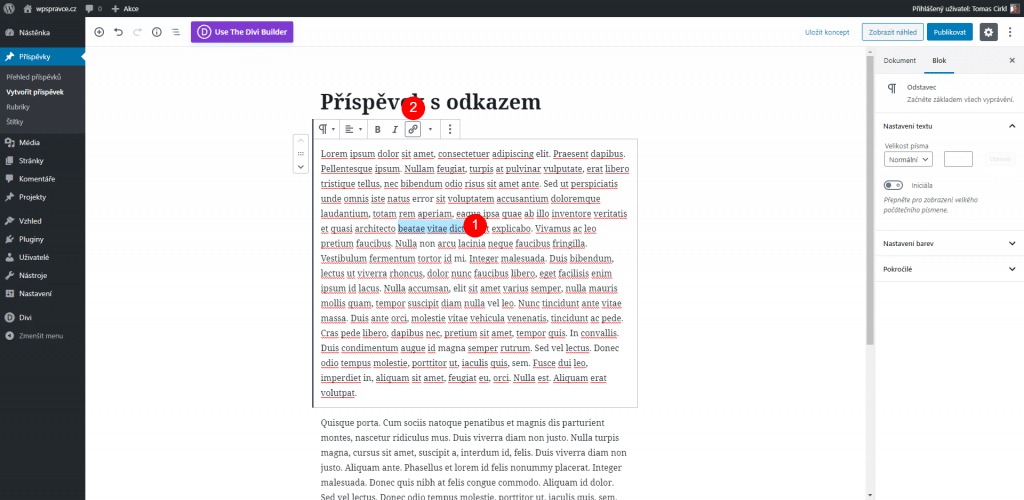
A pop-up window appears. Paste the copied link or, if you want to link to a post/page that is part of your website, enter a keyword. Finally, click on the right arrow or press Enter.
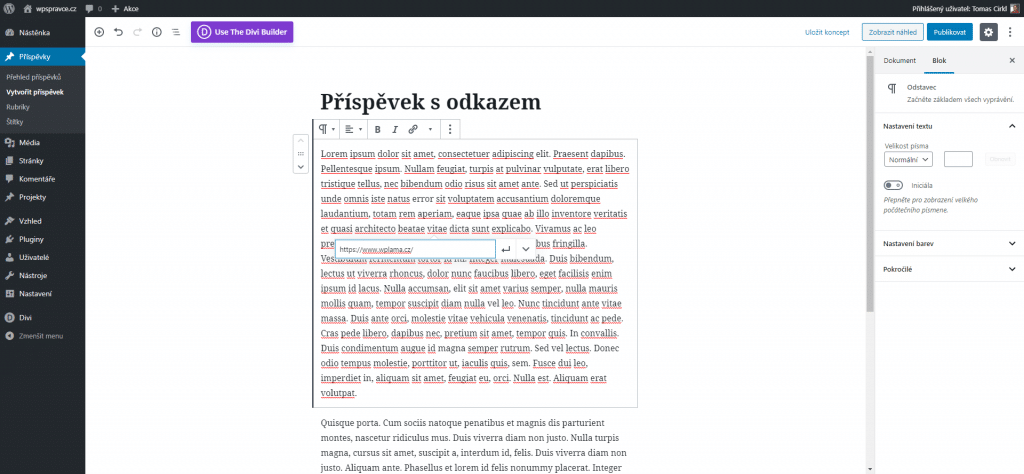
Now you have a link created.
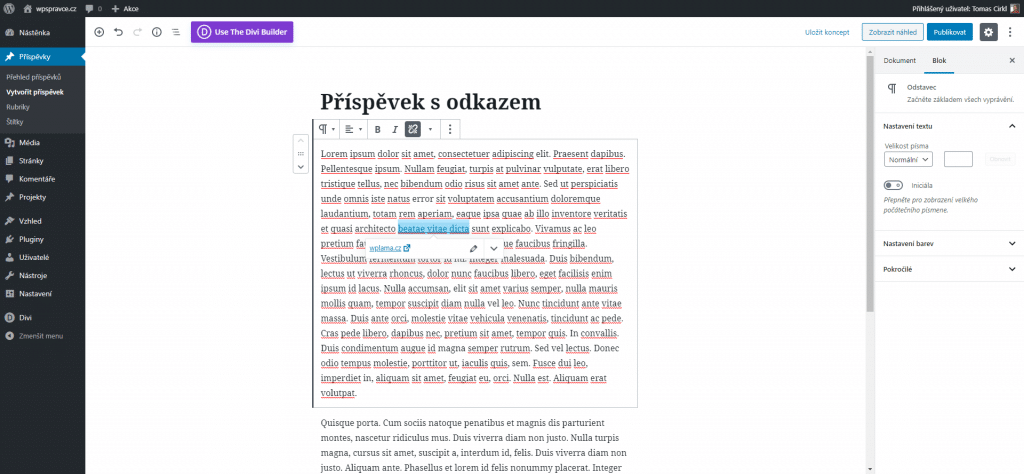
Link settings options
Once you have the link complete, you can still get into its settings. Just click on the link to mark it → Then click on the pencil icon and finally the gear icon.
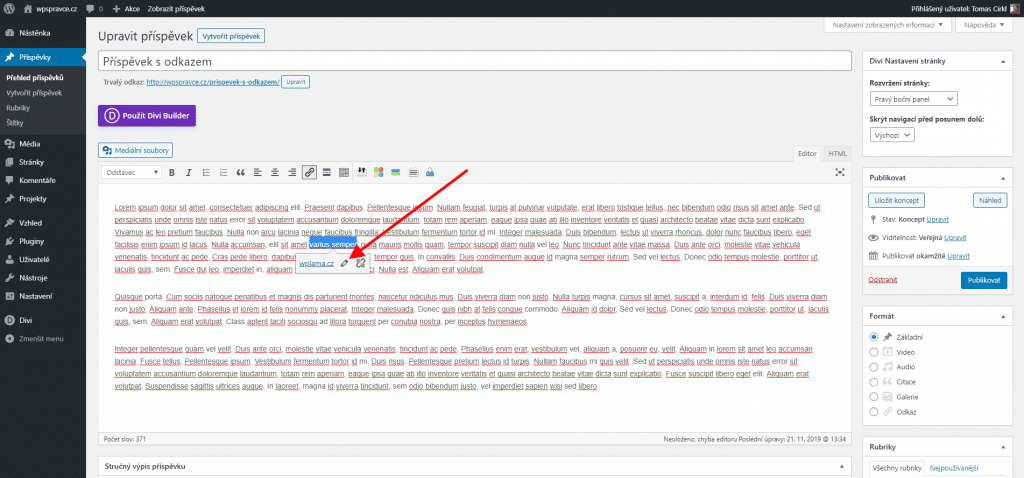
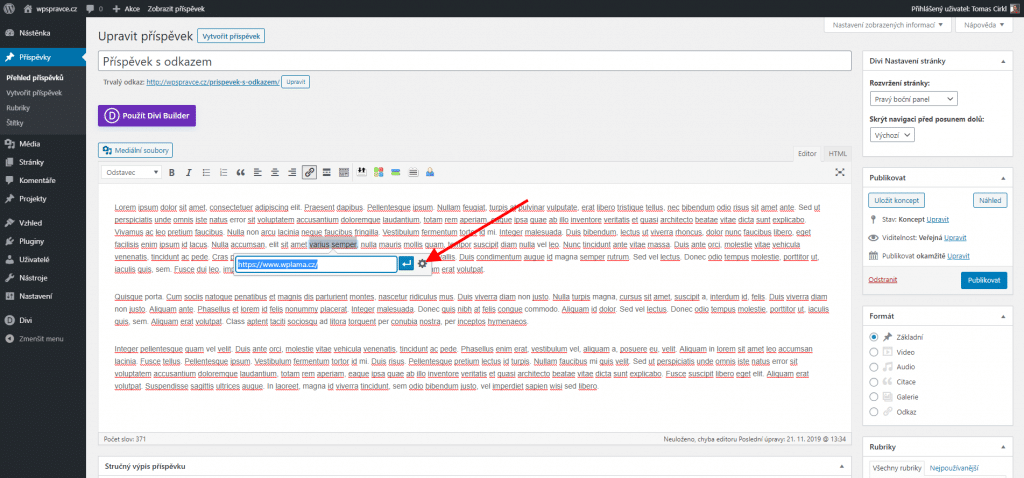
The link settings options include:
- a field for changing the URL
- a field for changing the link text
- an option to open the link in a new browser tab
- a search field with results from the WordPress website content
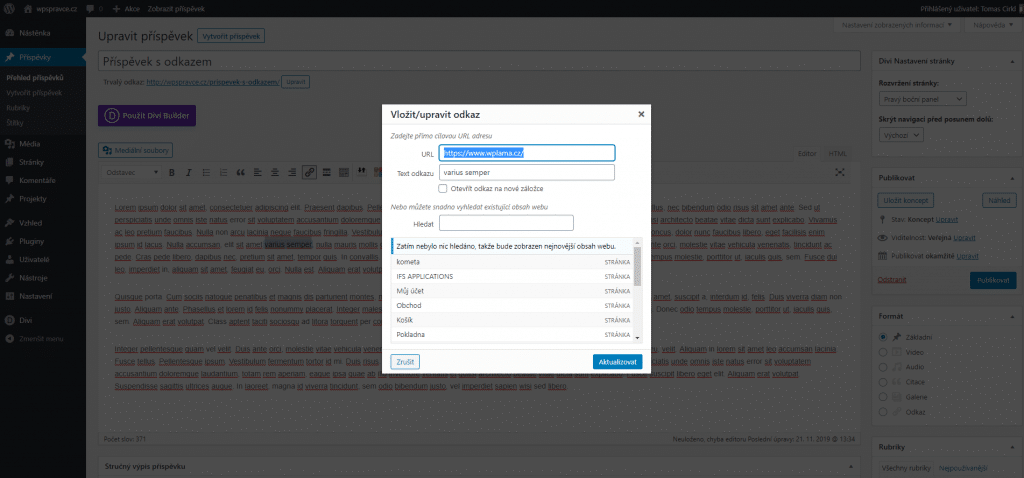
After editing the link, update it using the button in the lower right corner.

