


How to Password-Protect a WordPress Category and Its Posts

To password-protect a WordPress category, use the plugin Access Category Password. The plugin is located in the official plugin catalog and can be installed directly from the WordPress administration.

The plugin restricts access to posts assigned to a specific category. You can protect only the full post and show its excerpt in the category, or hide the excerpt behind a password as well. The plugin also modifies the WordPress RSS feed by replacing the description with a sentence you can customize.
The plugin can:
- Set a password.
- Control and protect categories.
- Set access to protected content based on user roles, even without a password.
- Display / protect text excerpts.
- Configure messages displayed with protected content.
- Configure the password entry field.
After installing and activating the plugin Access Category Password Go to its setup Settings → Access Category Password.
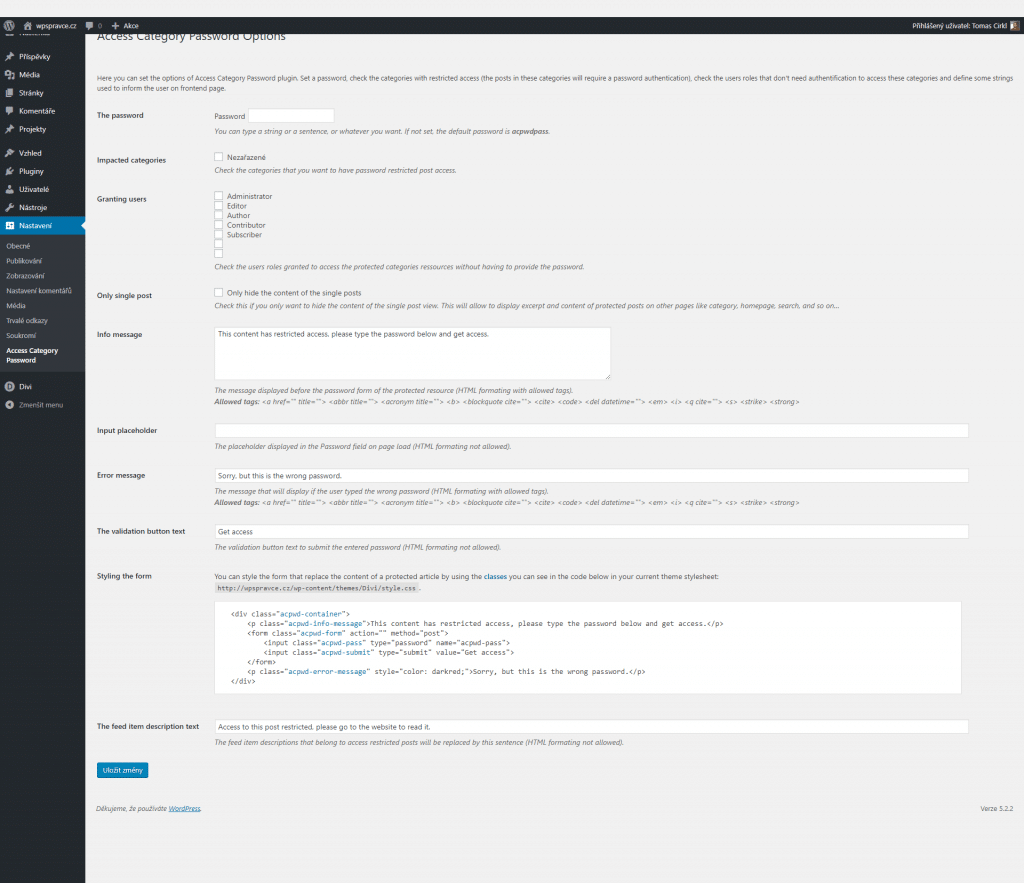
- The password – enter the password that will be used to protect the content.
- Impacted categories – check the categories to password-protect.
- Granting users – check the user roles that do not need to enter a password to access protected content.
- Only single post – check this to display the post excerpt and protect only the full post.
- Info message – the message displayed before the password entry field.
- Input placeholder – the placeholder for the password entry field.
- Error message – the error message displayed if an incorrect password is entered.
- The validation button text – the text of the submit button for entering the password.
- Styling the form – a field for customizing the form.
- The feed item description text – the text displayed in the RSS feed
After saving the selected settings, you can, for example, through a window Incognito, check the protected category settings.
